Sections and blocks
Every page is built from sections and blocks, edited in Online Store → Themes → Edit theme.
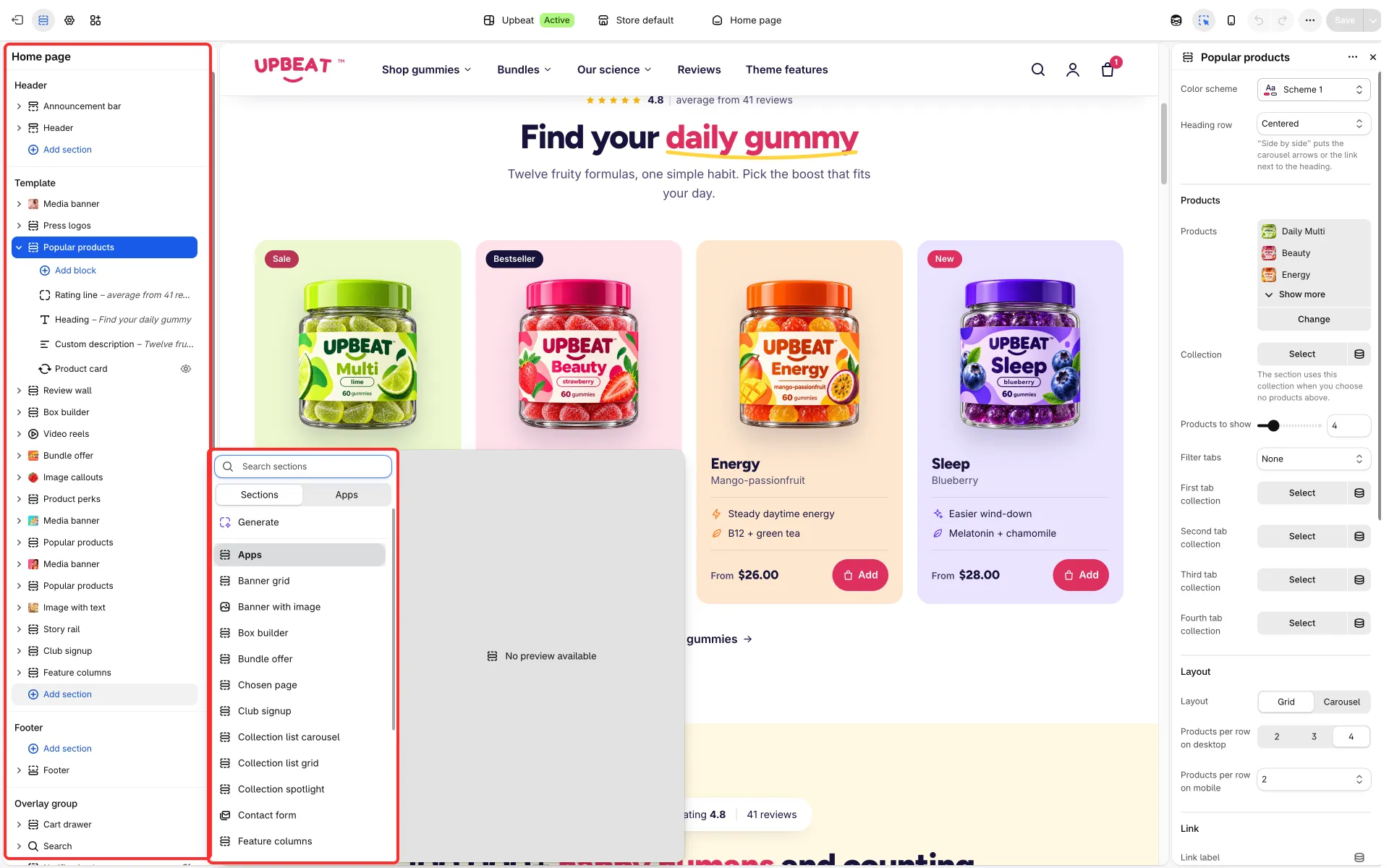
Sections
Section titled “Sections”A section is one full-width row of a page: a banner, a row of products, a list of questions. Each template (home page, product pages, a page template) has its own list of sections. Add sections with Add section; each can be reordered, hidden or duplicated. Shopify allows at most 25 sections on one template.
The header, the footer and the overlays are section groups shared by every page: Header, Footer and Overlay group. Content sections can’t be added to these groups, and the header, footer and overlay sections can’t be added to a template.
Blocks
Section titled “Blocks”A block is one part inside a section: a heading, a text, a button, a product card, a question. Most sections let you add, reorder, duplicate, hide and remove their blocks; Shopify allows up to 50 blocks in a section. Some blocks are part of a section’s layout and always sit in the same place, for example the heading and text of the Media banner: you can edit or hide them, but not move or remove them.
Most sections start with the same text blocks: Subheading, Heading, Custom description and Buttons (see Theme blocks).
Show a section on some devices only
Section titled “Show a section on some devices only”Most sections have Show on under Visibility: All devices, Phones only (narrower than 768 px) or Tablets and computers only. Use it to give phones a different hero or banner. A section hidden this way still loads with the page, and while you select it in the editor it shows on every screen size. The header, the footer, the overlays and the main section of each page (product information, collection, cart, article and the like) have no Show on.
A few blocks have their own switches: the Feature card of Feature showcase has Hide on phones and Hide on tablets, and the Picture block of Feature showcase and Feature split has Hide on phones.
To hide a section or block everywhere without deleting it, click the eye icon next to it in the editor’s list. It keeps its settings and comes back when you click the eye again.