Subscriptions
Lets shoppers choose a one-time purchase or a subscription on the product page. It needs an app that creates selling plans.
Set it up
Section titled “Set it up”- Install a subscription app that creates selling plans (for example Shopify Subscriptions) and add plans to your products.
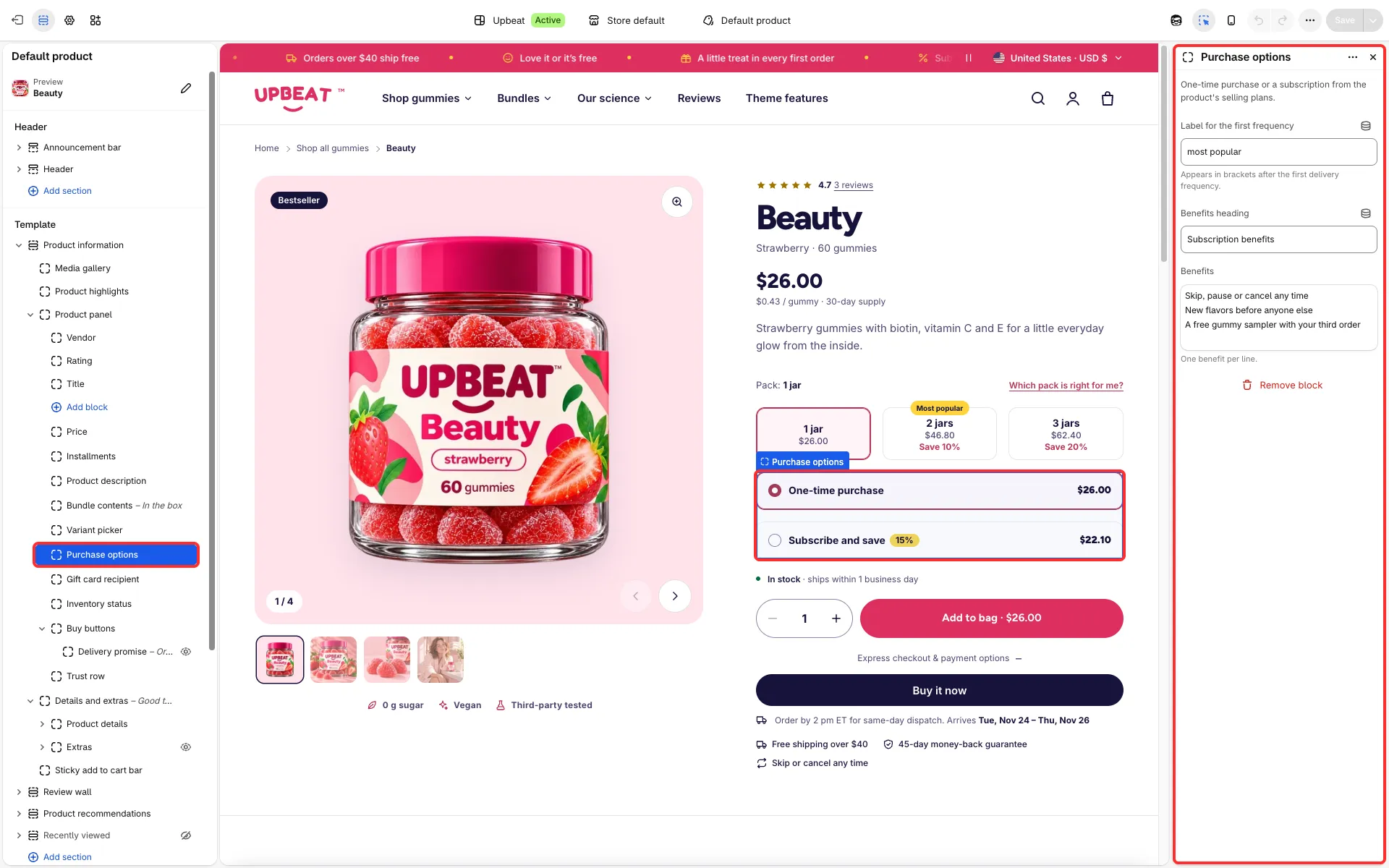
- Add the Purchase options block to the product panel if it is not there yet.
Main settings
Section titled “Main settings”- Purchase options block: Label for the first frequency, Benefits heading and Benefits.
Good to know
Section titled “Good to know”- The block shows a one-time card and a subscription card with its saving, price, delivery frequencies and benefits, using the plans of the product’s first selling plan group.
- It is hidden for products without plans, for gift cards and for pre-order variants.
- Products sold only on subscription hide the one-time card, and the price, buy buttons and sticky bar show the subscription price from the first load. Without a visible block, such a product shows its plan under the add button (“Subscription: …”).
- The chosen plan shows in the cart drawer and on the cart page under the product name.