Alternate templates
A template sets which sections a kind of page shows. An alternate template lets some products, collections or pages look different from the rest, for example a landing-style product page for one hero product.
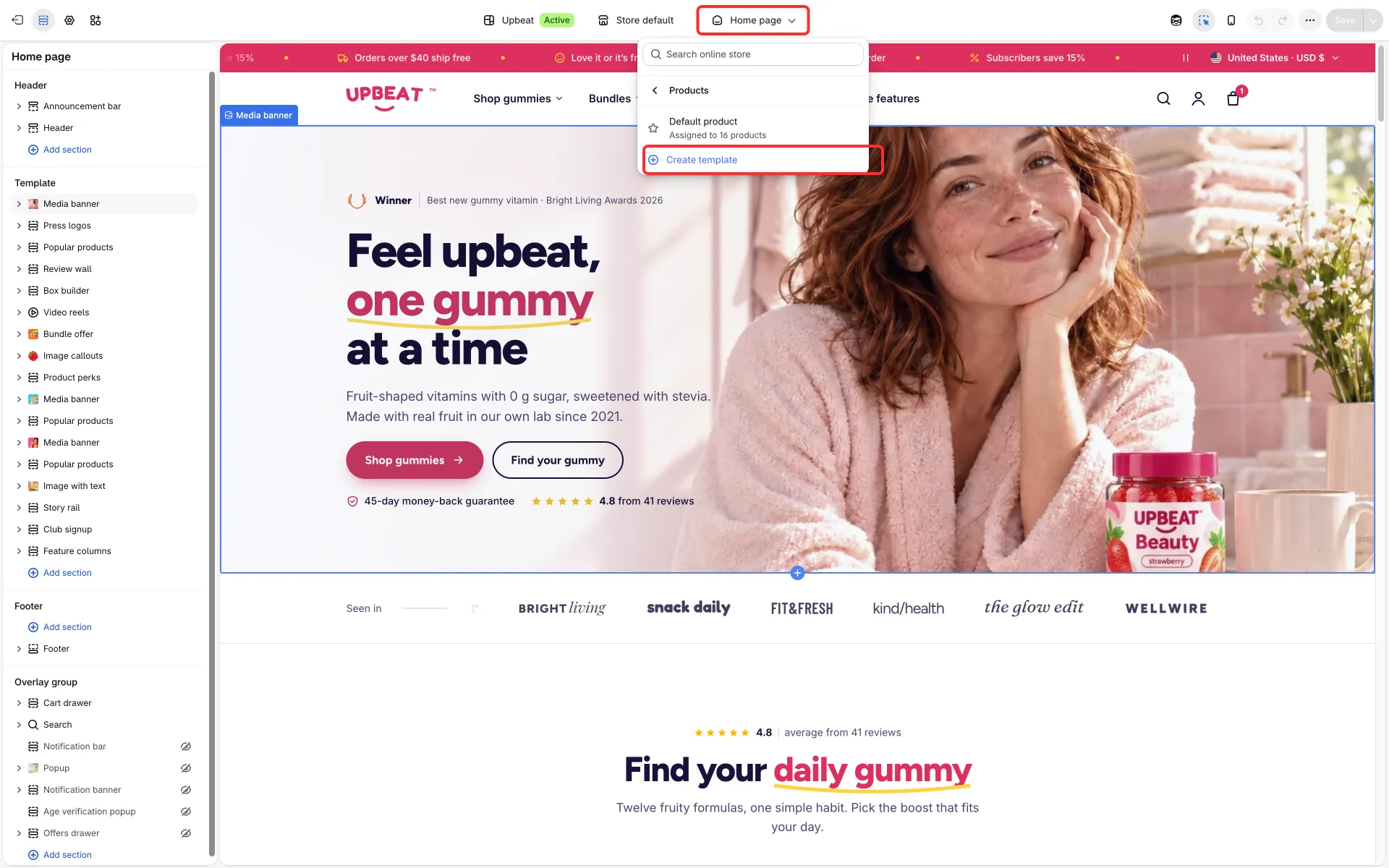
Create one
Section titled “Create one”- In the theme editor, open the template menu at the top (it shows Home page at first) and pick the kind of page, for example Products.
- Click Create template, give it a name and, under Based on, choose the template to start from. The new template starts as a copy of that one.
- Change its sections and blocks. A change affects every product or page that uses this template.
- Assign it: open the product, collection, page or blog post in the admin and choose the template in its Theme template field. Products and collections can also be assigned in bulk with the Bulk editor.
Good to know
Section titled “Good to know”- Every product uses the Default product template unless you give it another one; the same goes for collections, pages, blog posts and blogs.
- The theme installs six page templates:
about,faq,contact,stores,quizandfeatures. Assign them in Online Store → Pages → a page → Theme template. - Templates belong to a theme: when you publish another theme, or a copy made by an update, check that your alternate templates are there and still assigned.
- A Custom product field or Volume pricing tiers typed into a block show on every product that uses the template, and gift cards can have a layout of their own (see Custom fields and Gift cards).