Box builder
Shoppers tap products to fill a box of three or four and add the whole box to the cart with one button. Use it for build-your-own packs, such as a box of flavors.
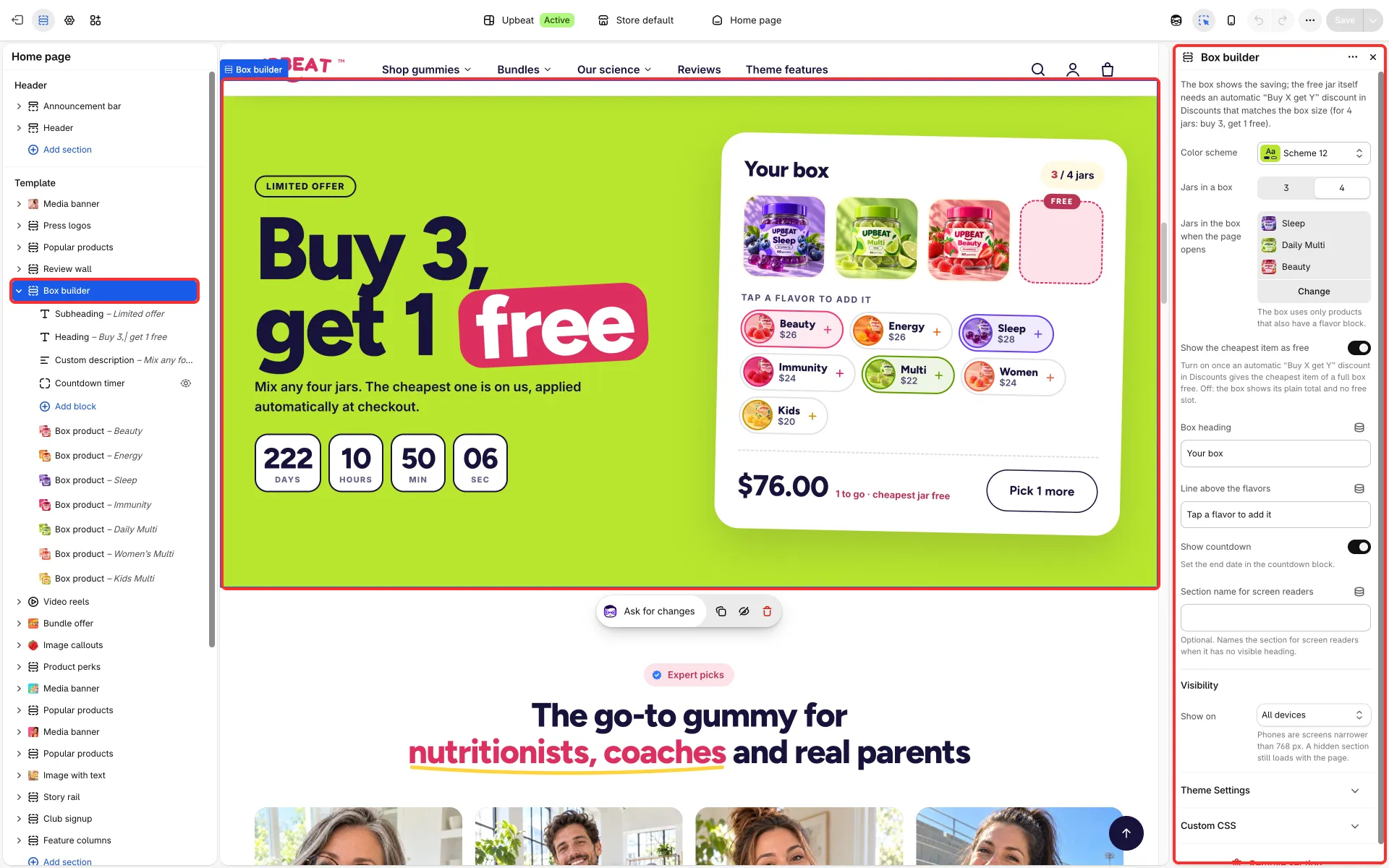
Main settings
Section titled “Main settings”- Jars in a box: 3 or 4.
- Jars in the box when the page opens: products that are already in the box.
- Show the cheapest item as free: the last slot reads “Free” and a full box marks its cheapest product as free and shows the saving.
- Box heading, Line above the flavors and Show countdown.
- Each Box product block: Product, Short name, Button image, Image in the box and Ring color.
Set it up
Section titled “Set it up”- Add one Box product block per product. Each uses its product’s first available variant. The chip shows the product title; Short name replaces it, so leave it empty unless you want a shorter name. Until you pick a product, a block shows a sample chip.
- Choose the box size, and optionally the products already in the box when the page opens.
- Create an automatic “Buy X get Y” discount in Discounts that matches the box size (for four products: buy 3, get 1 free), with the box’s products on both the “buy” and the “get” side, then turn on Show the cheapest item as free. The section shows the saving, but only the discount applies it at checkout: without it the shopper pays for every product.
Good to know
Section titled “Good to know”- Shoppers can pick a product more than once. A sold-out product’s chip says “Sold out” and can’t be picked.
- A fresh install ships with Show the cheapest item as free off, so the box shows its plain total until you create the discount.
- The box texts call each pick a “jar” when Theme settings → Cart → Word for what a bundle or pack holds is Jar, and an “item” otherwise.
- With a countdown, the box becomes unavailable when the timer ends. See Countdown timer.
- A product with a custom field (tag
personalized) links to its product page instead of going into the box. See Custom fields and personalized products.