Variants and photos
How shoppers choose a size or color, and how the gallery follows their choice. Use it for any product with options.
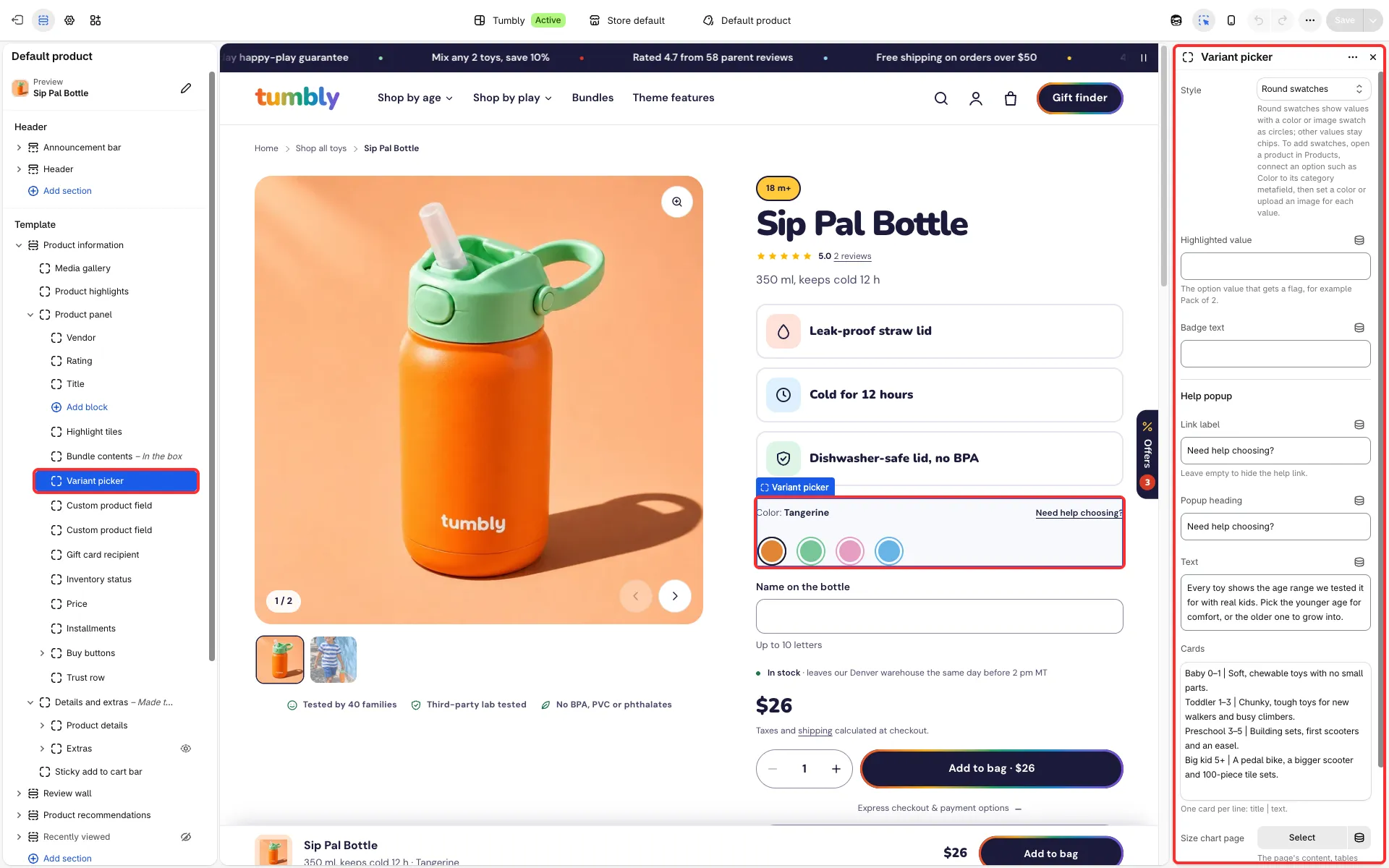
Main settings
Section titled “Main settings”- Variant picker block: Style (Chips, Round swatches or Dropdown), Highlighted value and Badge text.
- Help popup group: Link label, Popup heading, Text, Cards and Size chart page.
- Media gallery block: Show only the selected variant’s media.
Round swatches
Section titled “Round swatches”Round swatches need swatch values: open a product in Products, connect an option such as Color to its category metafield, then set a color or upload an image for each value. Values without a swatch stay chips.
Photos per variant
Section titled “Photos per variant”- Turn on Show only the selected variant’s media in the Media gallery block.
- In Products → a product → Media, order the media so that each variant’s image comes first and its other photos follow it.
- Give each variant its image in the variant’s settings (at least two variants need different images).
Media placed before the first variant image are shared and show for every variant. A variant without an image of its own shows the shared media, or all media when there are none.
Good to know
Section titled “Good to know”- After every choice the picker marks the values that can’t be bought with the options chosen before them (crossed-out chips and swatches, greyed-out dropdown entries). In the dropdown style, a change that leaves the other values without a match moves them to the first available combination.
- A combination that doesn’t exist hides the price and stock line, and says so on the button and to screen readers. Featured product shows “Unavailable” in place of the price.
- Products with more than 250 variants (Shopify allows up to 2,048) work in the picker, Featured product and quick view; a short wait can come before the price updates.
- A Size chart page you pick opens in the help popup. A product’s own chart in the
custom.size_chartmetafield (a page reference) replaces it.