Gift cards
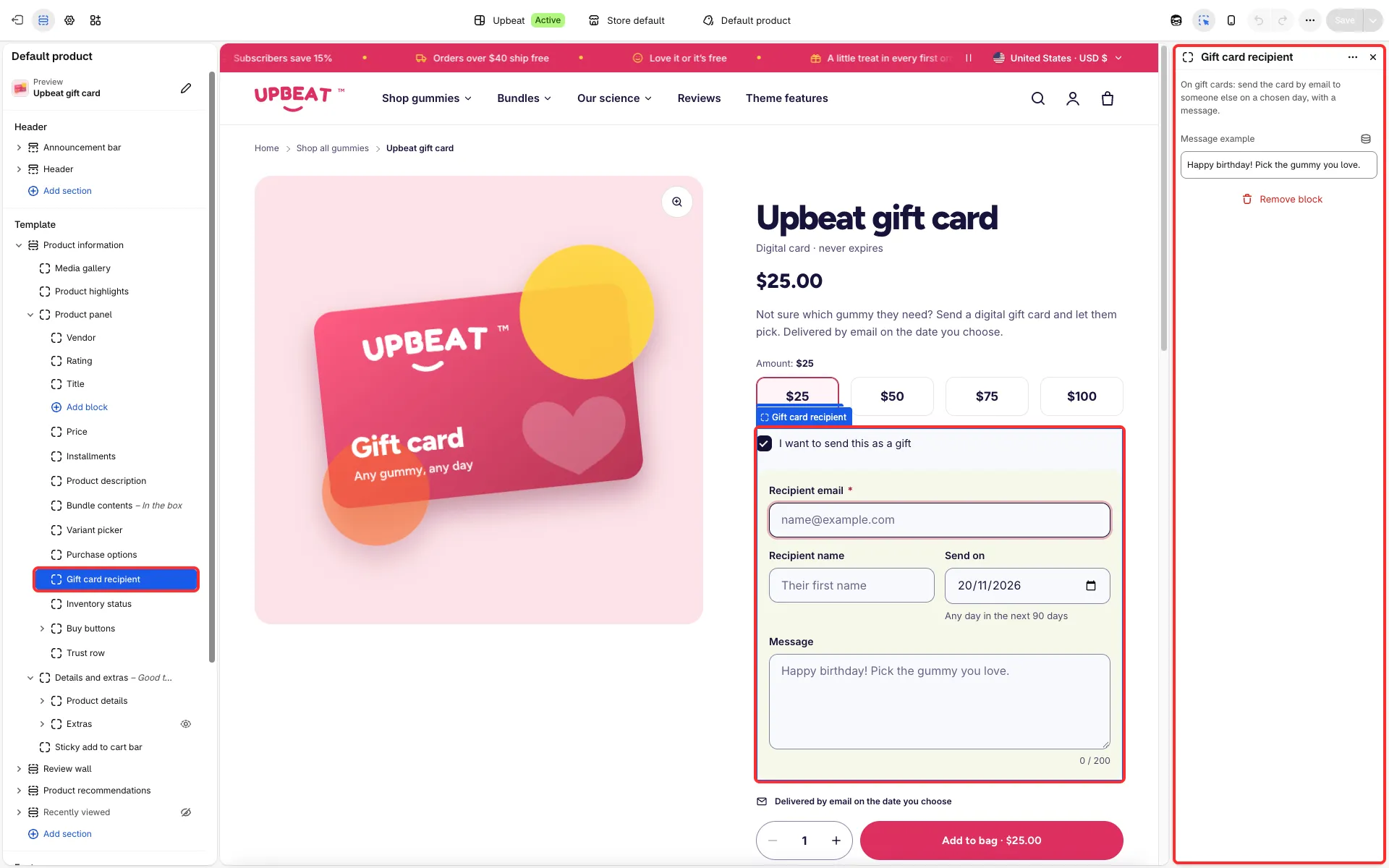
How gift cards look on the product page and on the page the customer opens from the gift card email.
Main settings
Section titled “Main settings”- Gift card recipient block (product panel): Message example. Ticking “I want to send this as a gift” opens the recipient’s email (required), name, message and send date.
- Gift card section (the page from the email): Text, Card colors (Pink or Sunshine), Show the QR code, Text beside the QR code, Show the sender’s message and Help link.
- Gift card note in Inventory status.
- Theme settings → Typography → Codes sets the font of gift card codes; Show currency codes on gift cards is in Currency format.
Good to know
Section titled “Good to know”- Gift cards use the product template. On a gift card the theme leaves out the trust row, the badges, the extras groups and the review wall, and shows the description under About this gift card.
- While the recipient box is ticked, the accelerated checkout buttons step aside, so the recipient always reaches the order.
- Product cards, quick add and product rows show a gift card with Choose options or a link to its page instead of an add button.
- To give gift cards a layout of their own, create a second product template and assign it to the gift card product.
- The gift card page shows the code, an optional QR code, the remaining balance once part of it is spent, and the Apple Wallet button when the card is active.