Blog and blog posts
The blog page with its newest story featured, and the article page.
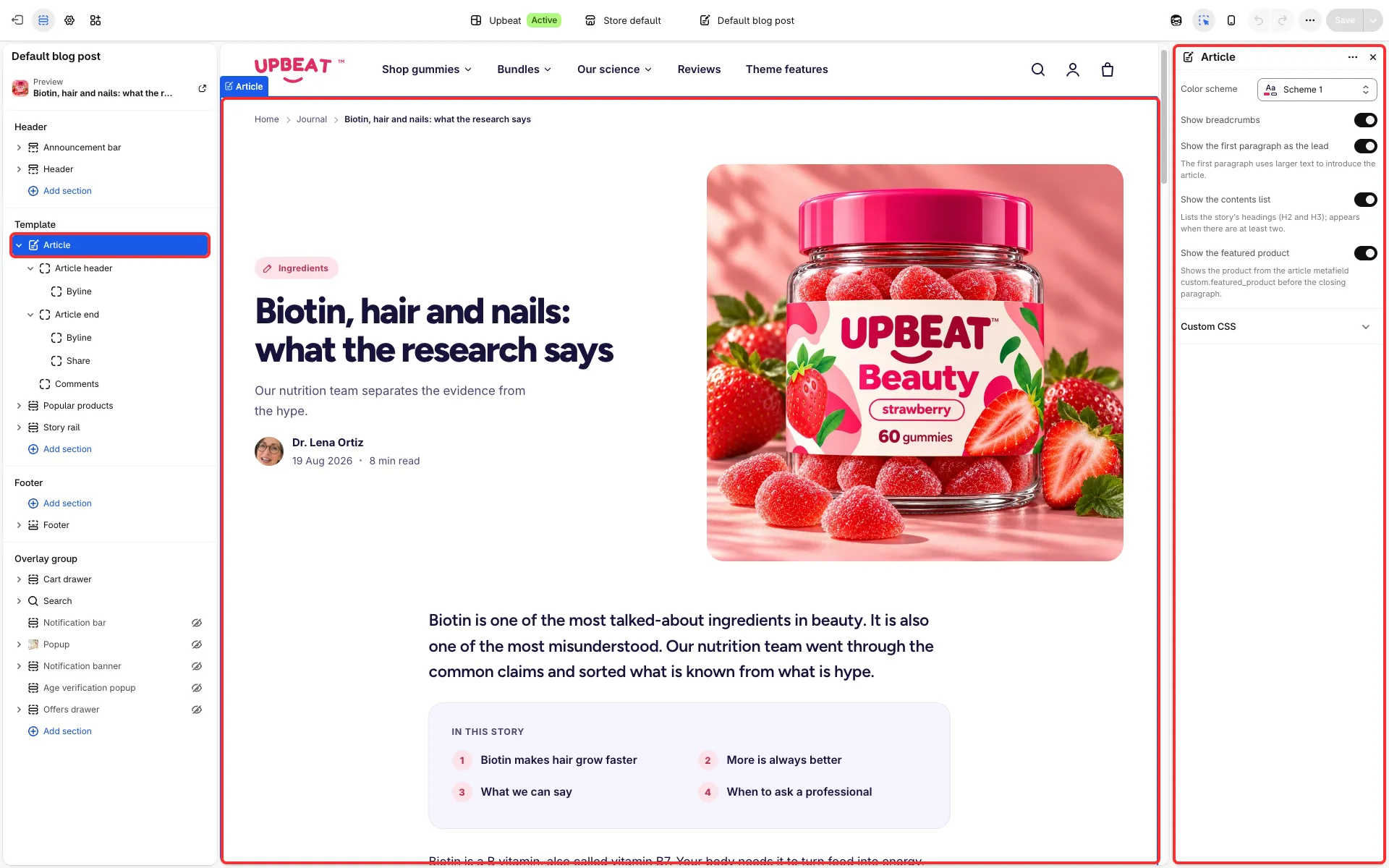
Main settings
Section titled “Main settings”- Blog section: Chip, Heading layout, Heading, Highlighted words, Text, Show the newest story large, Show topic links, Show story count, Stories per row and Stories per page. An Empty blog group has its own text.
- Article section: Show breadcrumbs, Show the first paragraph as the lead, Show the contents list and Show the featured product.
Good to know
Section titled “Good to know”- The contents list shows when it is turned on and the article has at least two subheadings, set as Heading 2 or Heading 3 in the article editor.
- The article page also shows an author box, tags, share buttons, previous and next articles, and comments. Reading time, author box and featured product come from the article’s
custom.*metafields (see Metafields).
Products under each blog post
Section titled “Products under each blog post”The blog post template has a Shop this story row (a Popular products section) that starts empty, so it stays hidden until you give it products. To show the same products under every post, pick them in the section’s Products setting. To show different products under each post:
- In Settings → Metafields and metaobjects → Blog posts, add a definition of the type Product with List of products turned on (for example “Shop this story”,
custom.shop_products). Add a Multi-line text definition as well if you want a line of text above the products (custom.shop_text). - Fill them in on each blog post, in the Metafields card at the bottom of the post.
- In the theme editor, open a blog post and select the Shop this story section. Click the Connect dynamic source icon next to Products and pick the product list. For the text, select the section’s Description block and use Insert dynamic source in its text box.