Set up your store
The first steps after you add the theme, and what to replace before you publish.
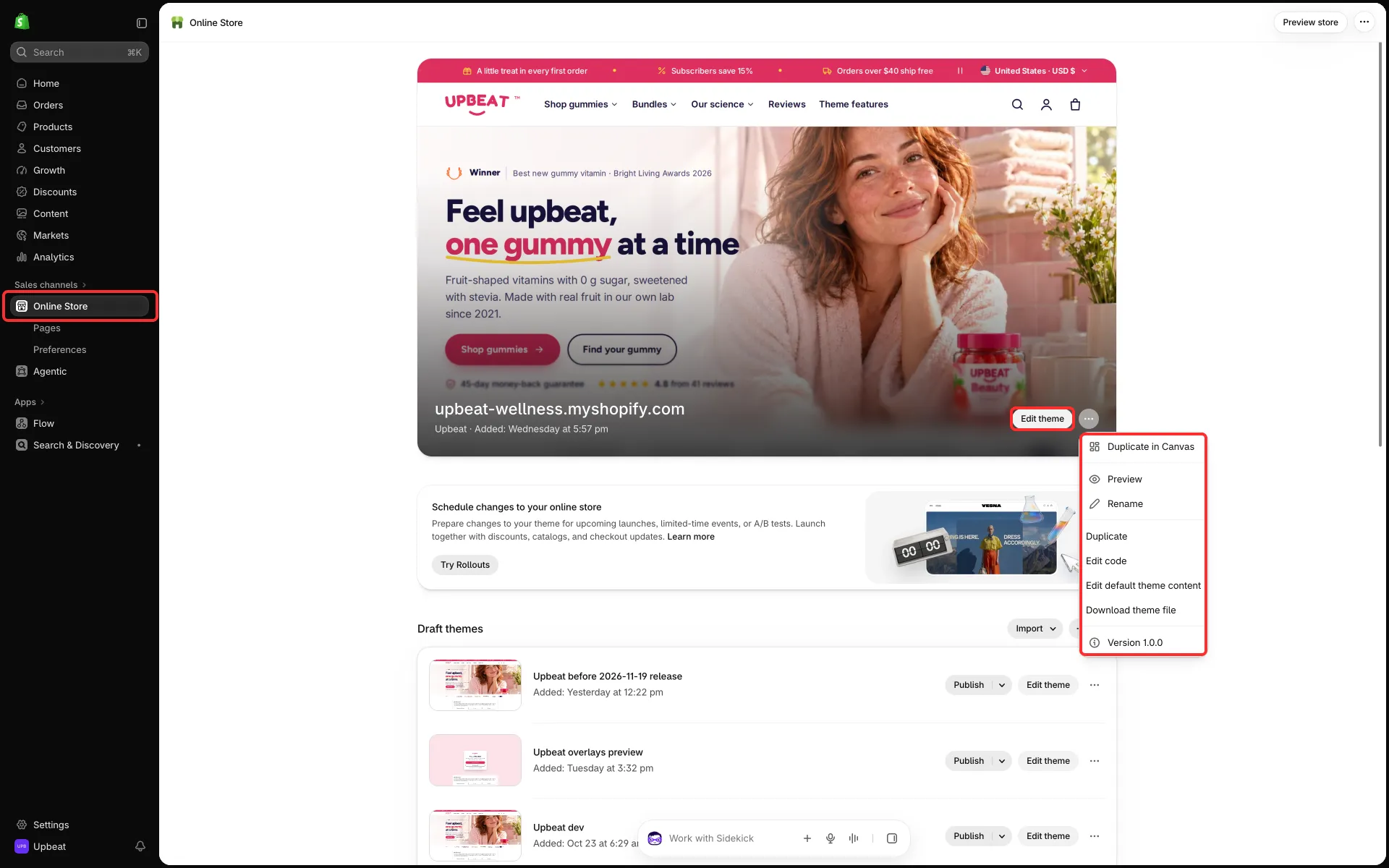
First steps
Section titled “First steps”- Add the theme. From the Theme Store, pick the preset you want (Upbeat, Tumbly or Dewpop). From a ZIP file, use Online Store → Themes → Import → Upload zip file (older admins name it Add theme): the ZIP installs the preset it was downloaded with, so there is nothing to pick, and you can switch the look later in Theme settings → Theme styles. Then open Edit theme before you publish.
- Logo. Upload your logo in Theme settings → Logo and favicon. Add a light version under Logo on dark backgrounds for headers over dark images. Without a logo image the header shows your store name as text; on phones a name longer than 14 characters is set smaller and may use up to three lines, so a logo image is the better choice for a long name.
- Colors and fonts. Set them in Theme settings → Colors and Typography (see Colors and Typography).
- Menus. Create your menus in Content → Menus. Pick the main menu in the Header, and the footer menu in the footer’s Footer menu block: each top-level item with nested links becomes one footer column, and top-level items without nested links share one more column.
- Metafields. Create the metafield definitions you want to use (see Product, collection, article and page data). Metafields are extra fields on products, collections, articles and pages; every one is optional.
- Sample content. Replace the sample images and texts in each section (see the checklist below).
- Page templates. Assign the extra page templates to your pages in the admin (Online Store → Pages → a page → Theme template):
about,faq,contact,stores,quizandfeatures. To make templates of your own, see Alternate templates. Pages the demo stores have beyond these (for example a subscriptions page or a gift finder page) are ordinary pages with their own content; the theme does not install them and its installed links do not point to them. - Overlays. Turn on the overlays you want (newsletter popup, age verification, offers drawer and others) in the editor’s overlay group; several ship turned off. See About the overlay group.
- Languages. See Languages and markets.
Before you publish: replace the sample content
Section titled “Before you publish: replace the sample content”Images do not transfer when you install a theme. Depending on the section, an empty image setting shows a placeholder, leaves a color background or removes the image area. Empty image slots (the hero first of all) show Shopify’s grey line-art placeholder until you choose an image: replace the hero image first.
The installed texts are written for your industry but name no brand, prices, delivery times, codes or ratings, and promise no free shipping, refunds, warranties or safety standards: shipping and return lines point to checkout and your refund policy. Links point to pages every store has (all products, contact, the News blog).
Read and rewrite:
- the trust strips, stats, comparison tables and FAQ answers: write your own facts into them;
- the buttons: point them at your own pages and collections;
- review cards: on the home pages of all three presets they hold short placeholder sentences (“Replace this with a real review from one of your customers.”), and in Upbeat also customer quotes and benefit lists. Write your own or delete the block, and never publish invented reviews;
- in Upbeat, the home page, the header and footer, the search, the overlays and all the page templates (About, FAQ, Features, Quiz, Contact and the rest) ship with neutral wording: questions and stories hold short sample sentences, quotes read “Replace this with a real quote…”, and answers that need your own facts (ingredients, quality checks, usage, pregnancy) start with “Replace this answer with…”;
- everything in Tumbly is an example for toys (see The Tumbly preset);
- page templates only appear when you assign them to a page; their sample questions, stats and press names need your own facts, or the page should stay unpublished.
Texts that show on every product, collection or cart (the announcement bar, the highlights under the gallery, the trust row, the collapsible content, the collection header perks, empty states and the cart’s reassurance lines) ship neutral and make no claim about your products; add your own where they are true.
The footer’s Disclaimer line ships empty. If your products or your country need a legal or regulatory statement (for example a supplement disclaimer), type it in the footer’s settings; it then shows under the footer on every page.
Things that start empty or off
Section titled “Things that start empty or off”These depend on your store, so they start empty or off:
- the free shipping progress bar (Theme settings → Cart → Free shipping threshold, an amount in your store currency that matches your shipping rates; see Free shipping bar);
- the countdown of a Bundle offer: set its end date to the end of your offer;
- the Product quiz (gift finder in Tumbly, skin quiz in Dewpop): its Result rule blocks name the demo store’s products, which your store does not have; until you pick your own products in each rule (and the price range of budget answers in your store currency) the quiz shows products from your All products collection for every answer (within the chosen budget once budget answers have a price range). See Product quiz;
- discount codes in the newsletter popup and the offers drawer. In Tumbly the offers drawer is shown, as in its demo, with general cards such as Featured products and Offers at checkout: write your own offers or hide the section;
- the Volume pricing block (Dewpop) and the photo and text fields of the Custom product field blocks (Tumbly): they sit on the product page in the demo’s place but stay hidden until you enter tiers or a field label (see Volume pricing and Custom fields and personalized products);
- ratings, review counts and rating bars. Review cards show “Customer name” and a sample star rating until you replace them with real reviews or delete them. On product pages the score comes from your reviews app (see Ratings and reviews);
- the country and language selectors, which appear by themselves once your store sells in more than one country or language;
- the products and collections in product rows, product grids, collection lists, the box builder and Dewpop’s shop-the-shelf photo: they name the demo store’s products and collections, so each shows sample cards (“Product title”, “Collection title”, no price) until you pick your own. A product row or collection list without its own products or collections shows its sample cards to shoppers only on the home page and on pages; on the cart, collection, product, search and 404 pages and in blog posts it stays hidden from shoppers and shows them only in the theme editor;
- the row of collection links on the collection page lists up to twelve of your store’s collections that have products (the home page collection left out) until you pick the ones to show.
Also check Theme settings → Cart → Word for what a bundle or pack holds (it starts as “item”) and, in the Facts popup block, the button label (“Product facts” in Upbeat) and the Panel heading (Supplement Facts, Nutrition Facts or Product Facts).
Changing Theme styles (Upbeat, Tumbly or Dewpop) only changes theme settings such as colours, fonts and shapes, not the content of your sections. The announcement bar scrolls, so a screenshot can show any of its items.