About Upbeat
Upbeat is a bright, cheerful theme for brands with a small or mid-sized catalog. It comes in three styles that use the same sections, blocks and settings and differ in colors, fonts, layout settings and in which sections fill each template.
The theme needs no apps. Subscriptions need an app that creates selling plans, and product ratings need a reviews app (see Subscriptions and Ratings and reviews). Layout and appearance are edited in Online Store → Themes → Edit theme; products, collections, pages, menus, metafields, discounts and selling plans are managed in the Shopify admin or in the app that owns them.
The three styles
Section titled “The three styles”| Style | For | Look | Demo store |
|---|---|---|---|
| Upbeat | Health and wellness brands with a small catalog: gummy vitamins, supplements, snacks, drinks and personal care. Built around subscriptions, social proof and bundles. | Pink and berry palette, hand-drawn underlines, soft-shadow buttons | Open the demo |
| Tumbly | Toys, ride-ons and everyday kit for children. Built around shopping by the child’s age. | Sunny coral, yellow, sky and mint palette, extra rounded corners, outlined buttons | Open the demo |
| Dewpop | Skincare, body care, sun care and lip products. Built around one color per product, a skin quiz and a shoppable shelf. | Cream page with a pastel color for each product, heavy open-spaced headings, pill buttons, inset product cards | Open the demo |
What each style installs: Upbeat, Tumbly, Dewpop.
Try it and buy it
Section titled “Try it and buy it”- On the theme’s page in the Shopify Theme Store, pick the style you want and choose Try theme. The theme is added to your theme library unpublished, so you can set it up with your own products and preview it for free.
- Set it up: see Set up your store.
- When you are ready, buy the theme from its card in Online Store → Themes or from its Theme Store page, then click Publish. A theme you buy is for one store.
Change the style
Section titled “Change the style”- Duplicate the theme first if you may want your own settings back: Online Store → Themes → ⋯ → Duplicate.
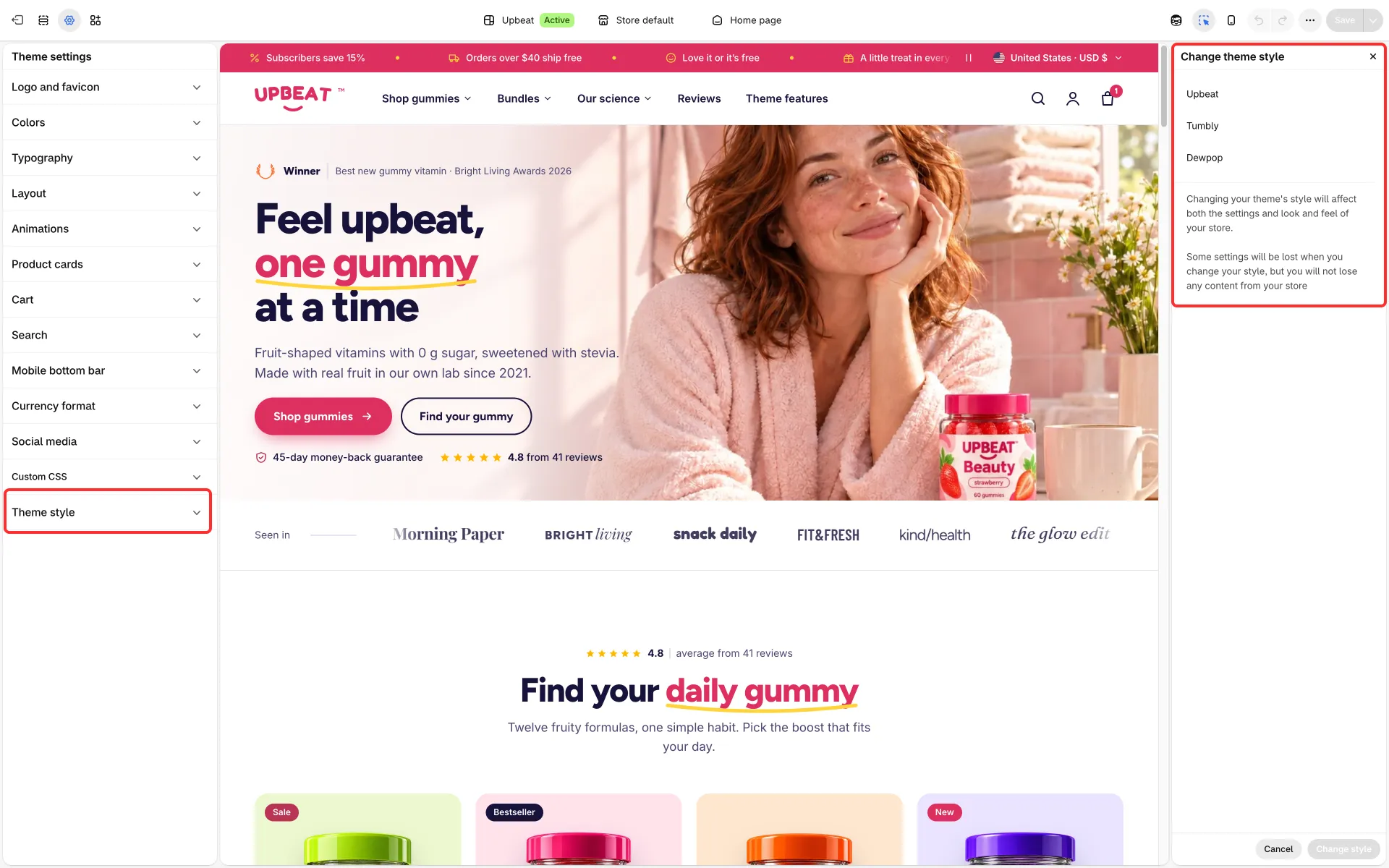
- In the editor, open Theme settings → Theme styles and pick Upbeat, Tumbly or Dewpop.
Changing the style replaces your theme settings, such as colors, fonts and shapes, with that style’s. Your sections and their content stay.
Theme updates
Section titled “Theme updates”What is an update? A new version of the theme with fixes and new features. What changed in each version is in the release notes.
How do I know there is one? In Online Store → Themes, the theme’s version number is replaced by an update notice.
How do I update?
- Back up first: Online Store → Themes → ⋯ → Duplicate. To keep a copy outside Shopify, choose ⋯ → Download theme file; Shopify emails you a ZIP file.
- Add the update from the notice. It creates an updated copy of the theme under Draft themes; your published theme does not change.
- Preview the copy, check your alternate templates and app blocks, then click Publish when you are ready.
Will I lose my settings? No. The copy keeps what you set in the theme editor: theme settings, sections and blocks with their content, app embeds, edited theme texts and the templates you created.
What about changes to the theme’s code? They are kept only when they don’t conflict with the update; copy the others over yourself.
Does Shopify change my theme by itself? Shopify can apply small automatic fixes for bugs or security issues. These don’t change your theme’s look, content or settings.
I installed the theme from a ZIP file. A theme installed from a ZIP file gets no update notices. To move to a new version, upload the new ZIP as a new theme and set it up again, using your current theme as the model.
How many copies can I keep? Your theme library holds up to 20 themes (100 on Shopify Plus), the published theme included, so delete old copies you no longer need.
Do I need extra apps? No for the box builder, bundles, quiz, free-shipping goal and popups: they are part of the theme. Subscriptions need a Shopify subscription app. Ratings come from Shopify’s standard review fields or from your reviews app.
Why do the sections show placeholder images after I install the theme? Demo store images do not transfer with a theme. Pick your own images in each section; until then a section shows a placeholder, keeps its color background, or switches to its text-only layout.
How do I show the country and language selectors? Add a second market or a second published language in Shopify’s settings, then turn on the selector in the announcement bar, header or footer settings (see Languages and markets).
Why does a block not show on my product page? Several blocks read product metafields (perks, facts, sibling products, card tags) and stay hidden while the metafield is empty. Metafields lists which metafield each one needs.
How do I sell subscriptions? Install a subscription app that creates selling plans, add plans to your products, and keep the Purchase options block in the product panel (see Subscriptions).
Does a countdown timer end my discount? No. The timer only changes what the section shows. Set the discount’s end date in Discounts too (see Countdown timer).
How do I change a text that is not in a section’s settings, such as “Add to cart”? Open Online Store → Themes → ⋯ → Edit default theme content and search for the text. Translations into other languages are edited in the same place or in the Translate & Adapt app.
Can I use the sections of one style in another? Yes. All three styles use the same sections, blocks and settings; only their colors, fonts, layout settings and starting templates differ.
Is support really there at any hour? Yes. We answer 24/7, from the first day you install the theme, during the trial too. If your store needs something the theme does not do yet, we add it within 24 hours of your request, free. See Support.